If you need a Verizon DNS address that avoids redirection, use the .14 opt-out servers for your market: 71.243.0.14 in Boston, 68.237.161.14 in New York, 71.250.0.14 in Newark, 71.242.0.14 in Philadelphia, and 71.252.0.14 in Reston. For MSPs and security teams, those are the Verizon DNS addresses worth using because the matching .12 variants historically redirected failed lookups instead of returning a standard NXDOMAIN result.
A lot of teams land here in the same situation. A client says internet access is “mostly fine,” but odd redirects keep showing up, security tooling behaves inconsistently, and troubleshooting gets muddy because failed DNS queries don’t fail cleanly. In Verizon FiOS environments, that often comes down to one overlooked detail: not all Verizon DNS servers behave the same way.
Most guides stop at a list of IPs. That’s not enough if you manage client networks, handle compliance questions, or need DNS behavior to stay predictable under pressure. The actual problem isn’t just finding a Verizon DNS address. It’s choosing the one that won’t distort failures, leak typo traffic, or complicate diagnostics.
Your Verizon DNS Address Quick Reference Guide
A client cuts over to a replacement FiOS gateway on Friday night. By Monday, internal tools are behaving strangely, typoed domains no longer fail cleanly, and the help desk is chasing symptoms instead of the resolver change that caused them. For MSPs, the quick reference that matters is the one that keeps Verizon DNS predictable.
If Verizon DNS must stay in place, use the regional .14 resolver pair and record it in the client standard. Those are the opt-out addresses. They preserve normal DNS failure behavior, which matters for troubleshooting, security controls, and any environment where DNS responses feed monitoring or policy decisions. That same discipline matters in breach response too, especially after incidents like this massive US wireless database leak affecting multiple domains, where clean DNS logging and query behavior can help investigators separate normal traffic from suspicious lookups.
Use this table as a field reference for common FiOS markets. Treat it as a starting point, then confirm the live pair from the client gateway, WAN lease details, or DHCP assignment before rollout.
| Region | Primary DNS | Secondary DNS | MSP note |
|---|---|---|---|
| Boston, MA | 71.243.0.14 | Confirm from client assignment | Use the .14 opt-out resolver. Verify the paired secondary on-site or from the gateway UI. |
| New York, NY | 68.237.161.14 | Confirm from client assignment | Commonly documented as a .14 market. Do not assume another Northeast office uses the same pair. |
| Newark, NJ | 71.250.0.14 | Confirm from client assignment | Validate after any ONT or router replacement. Verizon can push different local resolver assignments. |
| Philadelphia, PA | 71.242.0.14 | Confirm from client assignment | Good candidate for standardization, but only after checking the active lease details. |
| Reston, VA | 71.252.0.14 | Confirm from client assignment | Keep market-specific records. Mid-Atlantic clients often get treated as interchangeable when they are not. |
The missing secondary values are deliberate here. Published lists often get them wrong by copying an old pair, reusing a primary, or mixing nearby markets. In practice, that creates more support debt than it saves. A quick reference should point technicians to the right resolver family and tell them where to verify the active pair.
What to standardize
- Set the client baseline to regional .14 resolvers if the client wants to remain on Verizon DNS.
- Capture the actual primary and secondary from the installed gateway before templating the site.
- Document DNS by circuit location, not by client name alone. Multi-site clients often span different Verizon markets.
- Recheck DNS after gateway swaps, factory resets, or circuit migrations.
- Test NXDOMAIN behavior after changes so you know the resolver is returning clean failures.
A resolver choice looks small until it affects alerts, logs, and user support. For Verizon clients, the safe quick reference is simple: identify the market, use the .14 opt-out servers, and verify the full pair from the live assignment before you push the change.
Hijacking vs Opt-Out The Two Types of Verizon DNS
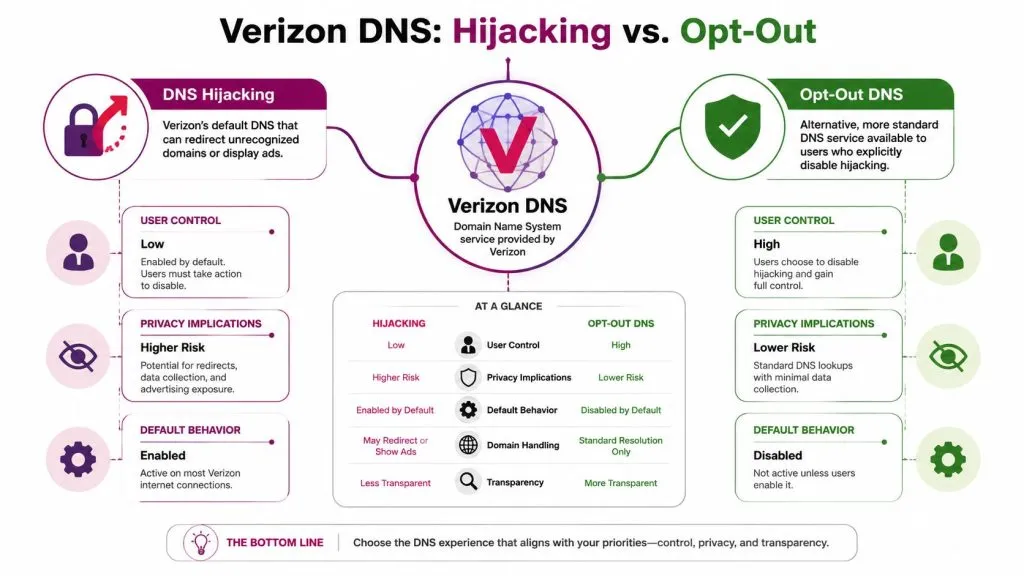
Verizon FiOS has long exposed two practical DNS behaviors under the same regional design. The .12 servers historically redirected failed queries, while the .14 servers were introduced as the opt-out option that returns transparent answers instead. Verizon FiOS’s split between standard .12 and opt-out .14 resolvers is described in this technical breakdown of Verizon DNS behavior.
What DNS hijacking means in practice
When a device asks DNS for a domain that doesn’t exist, the normal answer is NXDOMAIN. That result matters. Applications use it to determine whether a hostname is invalid, whether a service is unavailable, or whether a branch of logic should stop.
With Verizon’s .12 behavior, that clean failure can become a redirect to Verizon’s search or ad experience instead of a normal DNS miss. For a home user, that’s annoying. For an MSP, it’s worse because it changes the meaning of a failed query.
Here’s where I see this hurt teams most often:
- Security tooling gets noisy. Detection logic that expects a genuine failure can produce misleading output.
- Application troubleshooting takes longer. Engineers chase phantom connectivity issues when altered DNS behavior is the actual cause.
- Split-horizon and internal testing become less trustworthy. A resolver that rewrites failure paths isn’t neutral infrastructure.
Failed DNS should fail cleanly. If it doesn’t, every layer above it inherits ambiguity.
Why the .14 servers are the safer baseline
The .14 Verizon DNS addresses matter because they restore ordinary resolver behavior. Failed lookups return standard NXDOMAIN results. That gives you cleaner diagnostics, more predictable application behavior, and fewer surprises during audits or incident review.
This also changes the compliance conversation. If a client unknowingly uses hijacking-enabled resolvers, their network isn’t just “using Verizon DNS.” It’s using a resolver that modifies failure outcomes. That distinction matters when you’re documenting controls, explaining anomalous traffic, or showing why a client experienced redirects they never approved.
If you need an example of why altered network behavior becomes a bigger security issue once trust breaks down, the reporting around the US Wireless database leak covered by InsecureWeb is a reminder that weak assumptions around infrastructure visibility rarely stay isolated.
What doesn’t work
Many teams respond with broad advice like “just use a better DNS provider.” That may be the right long-term move, but it doesn’t solve the immediate managed-services problem when a client remains on Verizon infrastructure today. If the account, gateway, or support workflow still depends on Verizon DNS, the first fix is choosing the right Verizon DNS address. In those environments, .14 is the minimum acceptable baseline.
Official DNS Address List for FiOS Gateways and Mobile
A technician copies one Verizon DNS pair from a New York client to a Virginia office, leaves the gateway on auto at a third site, and assumes the mobile fleet will behave the same way on LTE. That is how MSPs end up with inconsistent filtering, hard-to-reproduce lookup failures, and support tickets that look random until you trace the resolver path.
Verizon DNS needs to be documented by access type and, for FiOS, by region. If the client must stay on Verizon resolvers, use the opt-out .14 servers already discussed earlier, not the hijacking-enabled .12 variants.
FiOS regional DNS addresses
FiOS resolver assignment has historically varied by market. The practical point for operations is simple. Do not clone one office’s Verizon DNS settings to every other office without checking the local assignment.
Use this as a field reference for common FiOS areas:
| Service area | Recommended Verizon DNS address |
|---|---|
| Boston, MA | 71.243.0.14 |
| New York, NY | 68.237.161.14 |
| Newark, NJ | 71.250.0.14 |
| Philadelphia, PA | 71.242.0.14 |
| Reston, VA | 71.252.0.14 |
For MSP documentation, record both the resolver IPs and the reason they were chosen. “Verizon DNS” is not enough for a runbook or audit trail. The useful entry is “Verizon regional opt-out resolver (.14) set manually to avoid NXDOMAIN redirection.”
What the gateway is actually doing
On FiOS, the gateway often learns DNS automatically from Verizon and then passes those addresses to the LAN through DHCP. That behavior reaches far beyond laptops. Phones, printers, conference systems, point-of-sale devices, and guest endpoints can all inherit the same resolver policy without anyone touching the devices directly.
That has two operational effects. A bad default spreads quickly, and a good manual override gives you site-wide consistency.
MSPs usually control this in one of two places:
- At the router, when the goal is one resolver policy for the entire site.
- At selected devices, when testing, segmentation, or application-specific requirements make a full-site change risky.
In managed environments, automatic DNS should be treated as a temporary state, not a documented standard.
Mobile is a separate resolver path
Verizon Wireless does not follow the same support model as FiOS. Phones and tablets on cellular data typically use resolver infrastructure assigned by the mobile network, and those assignments can change. A FiOS DNS correction at the office does nothing for a device that has failed back to LTE.
For Android, Private DNS is often the cleanest control because it pins the device to a named DNS-over-TLS provider such as one.one.one.one or dns.google instead of accepting the carrier default. On iOS, the control point is usually a configuration profile, MDM payload, or DNS app. For MSP teams, the takeaway is operational. Treat FiOS and Verizon mobile as separate DNS designs, document them separately, and test both paths before closing the ticket.
How to Configure DNS on a Verizon Router
Changing DNS at the router is the cleanest way to enforce one resolver policy across a client office. It’s faster to manage, easier to document, and less likely to drift than fixing every device one by one.
Basic router workflow
The exact menu names vary by Verizon gateway model, but the process is usually consistent.
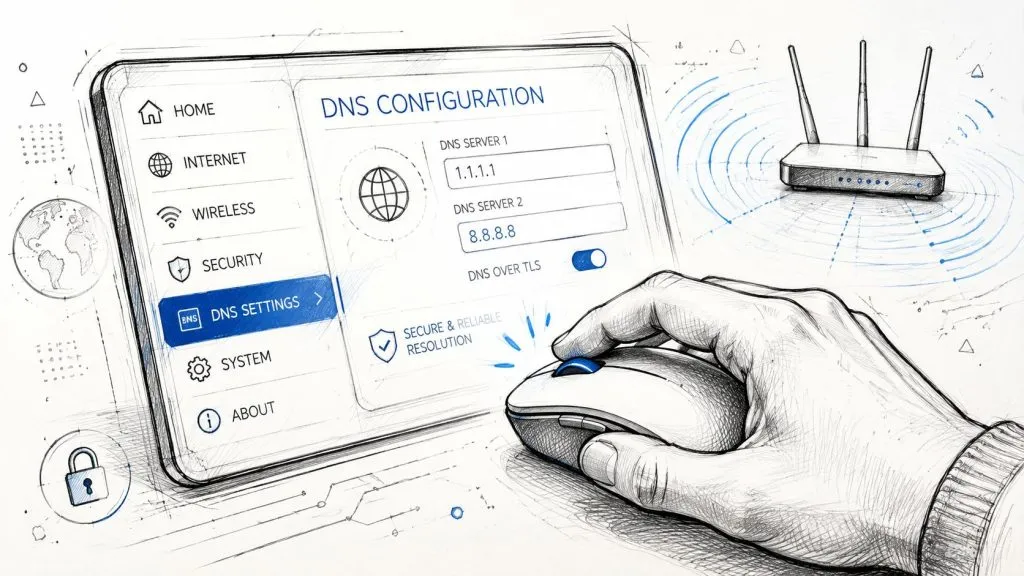
- Sign in to the router admin page. Use the local gateway management address or Verizon’s router hostname.
- Open the broadband or WAN connection settings. DNS settings are usually under network, broadband, or advanced sections.
- Change DNS from automatic to manual. This is the step that stops the gateway from re-inheriting Verizon defaults.
- Enter the chosen resolver pair. If the client must stay with Verizon, use the correct regional .14 address set.
- Save and apply the change. Expect a short interruption while the gateway updates.
After that, renew DHCP leases on test devices or reconnect them so they pick up the new resolver settings.
Don’t skip IPv6
A lot of failed DNS projects come from one mistake: the engineer updates IPv4 and forgets IPv6. Verizon router guidance for secure DNS filtering stresses that both protocol stacks need attention because modern devices and applications often use IPv6 for DNS resolution, and leaving IPv6 untouched can create traffic leakage around your intended controls in this router DNS configuration guidance for Verizon environments.
That matters even if your goal is simple consistency rather than content filtering. If IPv4 points one way and IPv6 points somewhere else, the client’s browsing, app behavior, and logs can become inconsistent.
Good change-control habits
Use a short checklist before and after the cutover:
- Before change: Export screenshots or note the original settings.
- During change: Apply resolver changes during a low-impact window if the office depends on cloud apps.
- After change: Test a normal site lookup, an internal hostname if applicable, and a non-existent domain to confirm expected behavior.
A short walkthrough can help if you’re guiding junior staff or remote hands:

One caution from practice: if the client has Verizon TV or bundled services, test those systems after the change. In mixed-service environments, router-level DNS changes should be validated against every business-critical function, not just web browsing.
Manual DNS Configuration for Windows macOS Android and iOS
Router-level control is best when you own the whole network. Device-level changes are useful when you need to test, isolate one endpoint, or avoid changing a shared environment during business hours.
Windows
On Windows, open the adapter settings for the active Ethernet or Wi-Fi connection and switch DNS assignment from automatic to manual. Enter the Verizon DNS address pair you want the machine to use, or your chosen third-party resolvers if this is a bypass test.
For MSP support calls, keep the instructions simple:
- Open Settings: Go to Network & Internet, then the active connection.
- Edit DNS assignment: Change from automatic to manual.
- Enable the needed protocol: Most environments will at least use IPv4, and many also need IPv6 reviewed.
- Save and reconnect: A reconnect helps confirm the new settings took effect.
If the machine is domain-joined or managed by MDM, check whether policy will overwrite the change.
macOS
On macOS, DNS changes live under the selected network service. Open Network settings, choose Wi-Fi or Ethernet, then edit the DNS servers for that service.
Two things trip people up on Macs. First, the user updates the wrong interface. Second, they add a new resolver without removing the inherited one, which can leave the machine using multiple paths unpredictably.
If you’re testing one resolver, remove the others for that test window. Mixed lists produce mixed conclusions.
Android
Android gives you two different DNS stories depending on whether the device is on Wi-Fi only or moving between Wi-Fi and cellular. For network-specific Wi-Fi testing, you can set manual DNS on the saved wireless network. For broader control, Android’s Private DNS feature is usually better.
Set Private DNS provider hostname to one.one.one.one or dns.google when you want the device to bypass the default Verizon network path. That’s especially helpful for users who move between office Wi-Fi, home Wi-Fi, and Verizon mobile service during the same day.
iPhone and iPad
On iOS, DNS changes are made per Wi-Fi network. Open the Wi-Fi details for the connected SSID, switch DNS from automatic to manual, then enter the resolver addresses you want.
That’s fine for site testing, but there’s an operational limit: the setting follows the Wi-Fi network, not the device across all networks. If an executive says “it works in the office but not on LTE,” changing the office Wi-Fi DNS on the phone won’t fix the cellular side.
A clean testing pattern for MSP teams
When I’m validating a suspected Verizon DNS issue, I use a staged approach instead of changing everything at once:
- Pick one endpoint. A laptop is usually easiest.
- Apply manual DNS only to that device. Don’t start with the whole office.
- Test the affected app and a non-existent hostname. That reveals whether resolver behavior changed.
- Promote the change to the router only after the single-device test is clean.
That approach avoids turning DNS troubleshooting into a site-wide outage.
Troubleshooting Common Verizon DNS Issues
DNS changes fail in a few predictable ways. The trick is separating a resolver problem from a general connectivity problem before you start swapping settings again.
Symptom-based checks
If websites don’t load at all after a DNS change, start with the obvious issue first: a typo in the resolver address, a missing save action in the gateway, or a client still pulling DNS from DHCP. If some apps work and others don’t, look for cached entries or a missed IPv6 path.
Use a short problem map:
- No sites resolve: Verify the configured DNS addresses and confirm the client received them.
- Redirects still happen: Check whether the endpoint still has the old DNS in cache, or whether another adapter is active.
- One device works, another doesn’t: Compare their active DNS settings, not just the intended policy.
- The office feels slow: Separate DNS delay from bandwidth or application delay.
Commands that tell you something useful
nslookup is still the fastest first check on most endpoints. It tells you which server answered and whether the query failed cleanly or returned an unexpected result.
A simple workflow:
- Run
nslookupagainst a known domain. - Confirm the responding server matches the intended resolver.
- Query a non-existent domain.
- Check whether the answer is a standard failure or something unexpected.
ping has less diagnostic value for DNS itself, but it can still help prove the client has general IP connectivity while name resolution is failing.
Performance expectations
Verizon is a very small DNS provider in the broader web ecosystem, serving less than 0.1% of all websites globally according to W3Techs usage data for Verizon DNS. That aligns with how practitioners should think about it. Verizon DNS is mainly there for Verizon subscribers, not as a globally optimized public DNS platform.
So if a client says, “Why doesn’t this feel as fast as Cloudflare or Google?” the answer may be that Verizon’s resolver design is regional and subscriber-focused. That doesn’t make it unusable. It does mean you shouldn’t assume it will behave like a large public DNS service built for broad external use.
A resolver can be correct and still not be the best fit for a business network.
Security and Privacy Risks of Using Default ISP DNS
Default ISP DNS is convenient because it requires no effort. For managed environments, that convenience often creates blind spots you don’t want.
The first risk is loss of control. If the client stays on default DNS, the resolver policy lives with the ISP and the gateway defaults, not with your security baseline. That means a hardware swap, a reset, or a support intervention can inadvertently change how lookups behave without going through your change process.
The second risk is altered failure behavior. Verizon’s redirection of failed lookups through .12 servers has been analyzed as a net neutrality issue and as a compliance concern for MSSPs in this compliance-focused review of Verizon DNS redirection. Once failed queries stop failing normally, your team loses a clean signal that many tools and troubleshooting methods depend on.
Why this becomes a compliance issue
For an MSSP, the problem isn’t only technical. It’s evidentiary. If a client asks why users saw redirected typo traffic, or why security monitoring didn’t reflect expected NXDOMAIN behavior, “that was the ISP default” isn’t a strong answer.
That’s especially true in reputation-sensitive environments. Public reporting around incidents like the Verizon customer record exposure covered by InsecureWeb shows how quickly trust degrades when customers feel infrastructure decisions weren’t controlled tightly enough.
The practical takeaway
If you keep clients on Verizon DNS, use the opt-out path and document it. If you need stronger privacy, stronger filtering, or a resolver policy you can defend in writing, move them off default ISP DNS entirely.
When to Use Custom DNS Instead of Verizon
Verizon’s opt-out DNS is acceptable when you need to stay inside Verizon’s ecosystem and avoid redirection. It isn’t always the best operational choice.
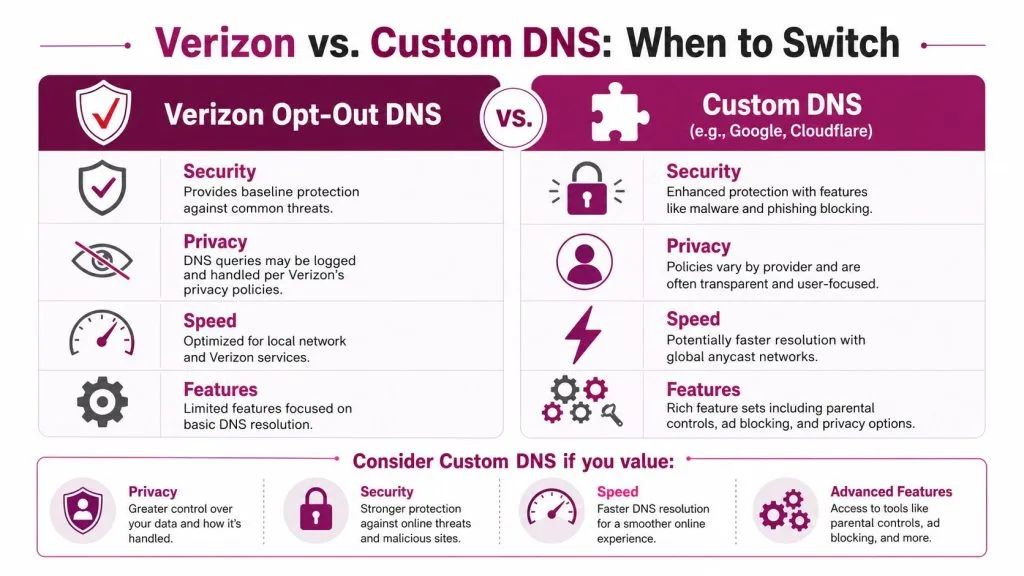
The deciding factor is usually the client’s priority. If they care most about staying close to ISP defaults while removing hijacking behavior, Verizon’s .14 addresses are a reasonable compromise. If they care more about resolver features, privacy posture, or broader performance consistency, custom DNS is usually the better fit.
Decision points that matter
Use custom DNS when one or more of these applies:
- You want better speed consistency: The Verizon DNS performance discussion linked earlier includes benchmark ranges showing regional Verizon lookups can be slower than major public alternatives.
- You need security filtering: Providers like CleanBrowsing and similar services are built around policy control, not just raw resolution.
- You want encrypted DNS options on devices: Android Private DNS is a strong example.
- You need cleaner privacy choices: Public DNS providers usually publish clearer resolver feature sets and operating models than an ISP default path.
What works well by scenario
A few common patterns hold up well in managed environments:
| Need | Better fit |
|---|---|
| Stay on Verizon, avoid redirects | Regional Verizon .14 address |
| General-purpose business browsing | Cloudflare or Google Public DNS |
| Policy-based filtering | A DNS provider built for security filtering |
| Mobile users crossing networks | Device-level encrypted DNS where supported |
One caution. “Custom DNS” isn’t automatically safer. It’s only safer if the provider’s policy, logging model, and operational controls fit the client’s environment. Reviews of privacy-branded tools can look strong until incidents test them, which is why articles such as InsecureWeb’s reporting on AdGuard DNS and breach exposure concerns are worth reading before you standardize a provider across a fleet.
For MSPs, the cleanest recommendation stack is usually this: use Verizon .14 only when Verizon must remain the resolver, and use custom DNS when the client wants stronger control than an ISP resolver can offer.
If you manage client networks and need better visibility into DNS-related exposure, brand impersonation, leaked credentials, or internet-facing risk, InsecureWeb gives MSPs and security teams a practical way to monitor threats across the open internet, dark web, and social platforms, with white-label options and API access for operational workflows.